How it works
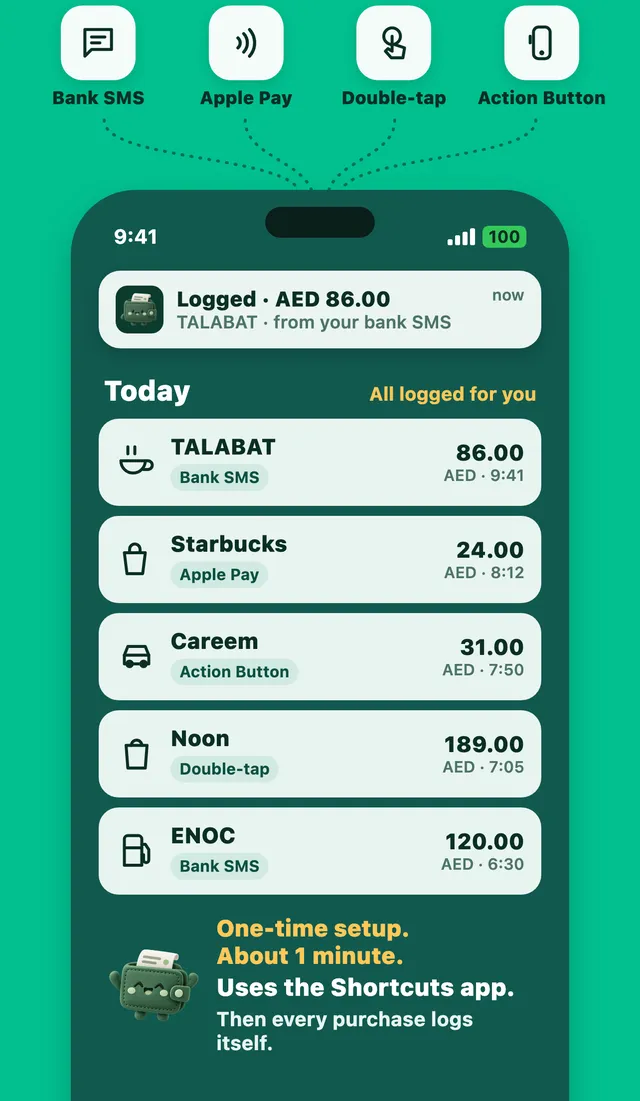
Apple's Shortcuts app can run an action every time you use a card in Wallet. Expensly uses that moment: right after you pay, it shows the purchase with the shop ready, so all you add is the amount. It takes a second, and you never forget a purchase again.
Set it up in two steps
- Add the Expensly shortcut with one tap from the app.
- Turn on "When I tap Apple Pay". In Shortcuts, open Automation, choose Wallet, tick your cards, choose Run Immediately and pick Expensly.
The app then runs a quick test so you know it works before your next real purchase.
Use it with bank SMS
Apple Pay and bank SMS work well together. If both catch the same purchase, Expensly keeps one expense, never two.
Questions
Does it work with Apple Watch?
Yes. The Wallet automation runs for Apple Pay on your iPhone and your Apple Watch.
Will the same purchase be logged twice?
No. When a bank SMS and an Apple Pay tap describe the same purchase, Expensly keeps one expense.
More features
Purchases log themselves
Your bank texts you after every card payment. Expensly turns that text into an expense.
Learn moreOne tap, any bank
After you pay, double-tap the back of your iPhone or press the Action Button. Done.
Learn moreAndroid: alerts log themselves
Turn on SMS and notification access once. Every bank alert becomes an expense.
Learn moreSave for what you love.
Free to start. Premium has a 7-day free trial.